
ShortShock · Social media management for creators
Make it once.Post to every connected channel.
ShortShock is a creator tool that connects your YouTube, Instagram, Threads, TikTok, and X accounts and brings simultaneous upload, scheduling, performance tracking, AI video analysis, reference saving, and crews into one place.
Get started right away with a Kakao or Google account.
Show transcript
- Posting to each channel separately, checking the numbers app by app.
- Now, just ShortShock.
- Make one project and post it to the channels you choose, all at once. Retry only the channels that failed.
- Schedule it, and see what's posted and what's coming on one calendar.
- Results from your connected channels on one screen, down to comparisons by tag.
- Trace why it worked, scene by scene.
- Collect references with a single link, and share them with a single link.
- Alone, you stall. In a crew, you keep going.
- Start ShortShock for free. app.shortshock.net
As of Oct 14, 2026
724 creator channels
are connected to ShortShock
Content from channels connected on YouTube, Instagram, TikTok, and Threads, along with how audiences responded to it, comes together in ShortShock's Home and Insights.
- Total views
- 826.9M
- 826,880,219
- Likes
- 26.8M
- 26,785,407
- Comments
- 1.5M
- 1,498,147
- Content
- 51.5K
- 51,518
Connected channels by platform
| Platform | Channels | Content | Total views | Likes |
|---|---|---|---|---|
| YouTube | 305 | 24,133 | 294.4M | 3.4M |
| 232 | 19,100 | 416.5M | 19.6M | |
| TikTok | 178 | 9,548 | 150.1M | 4.5M |
| Threads | 9 | 65 | 3,863 | 96 |
These figures cover content from channels connected to ShortShock (not just content posted through ShortShock). The totals above count the 20 cases where multiple teams connected the same channel only once; the per-platform content, views, and likes count each of those 20 separately.
One project is
one piece of content.
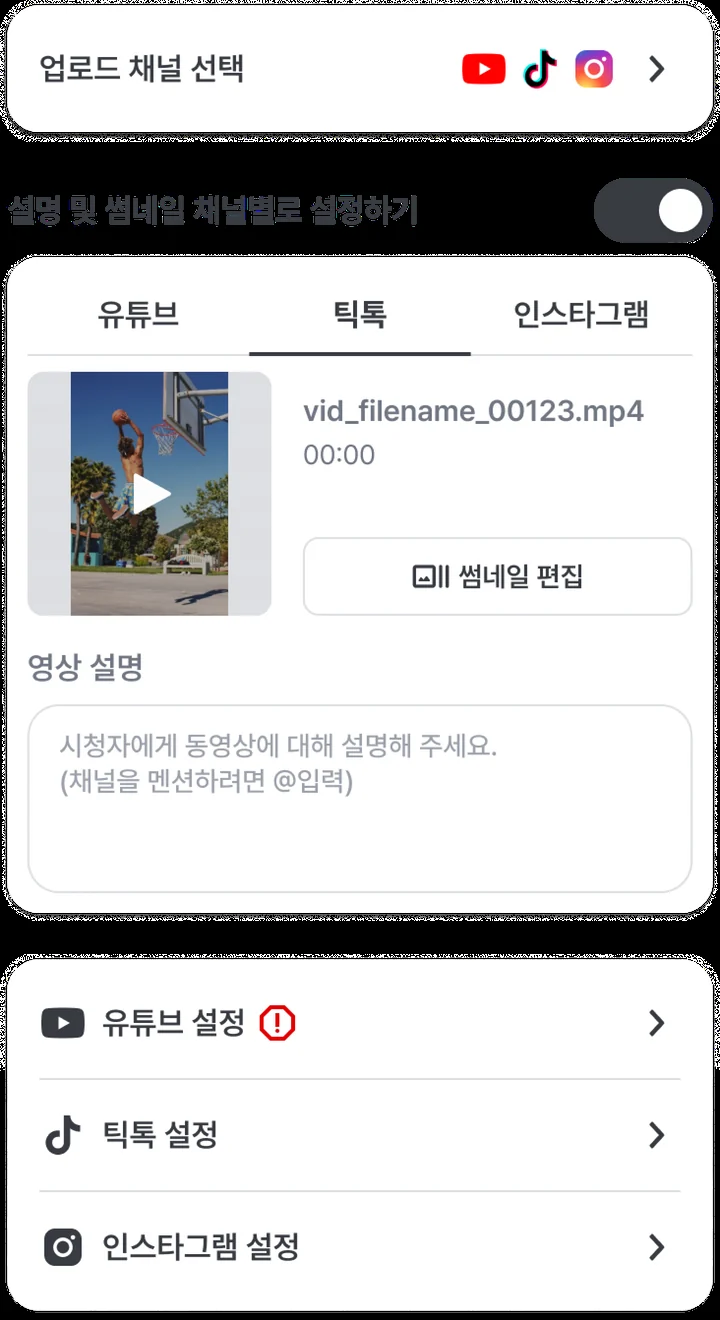
Pick a format (video, card news, or post) and check the connected accounts you want to post to. Write the caption and cover once with batch settings, or separately with per-channel settings.
- Per-channel options, inside ShortShock
- Set YouTube visibility and made-for-kids status, TikTok Duet and Stitch permissions, and who can reply on X and Threads, all from ShortShock.
- Retry only what failed
- Each channel shows its own status: pending, uploading, done, or failed. If only one fails, you retry only that one.
- Spec checks before you post
- Limits like 2–10 images per card news post, up to 4 images on X, and image ratios between 4:5 and 1.91:1 are flagged before you press Upload.
For the cover, grab a frame from the video or upload a file. YouTube is the exception: under its platform policy, you set the cover on YouTube after uploading.
Schedule it,
see it on one calendar.
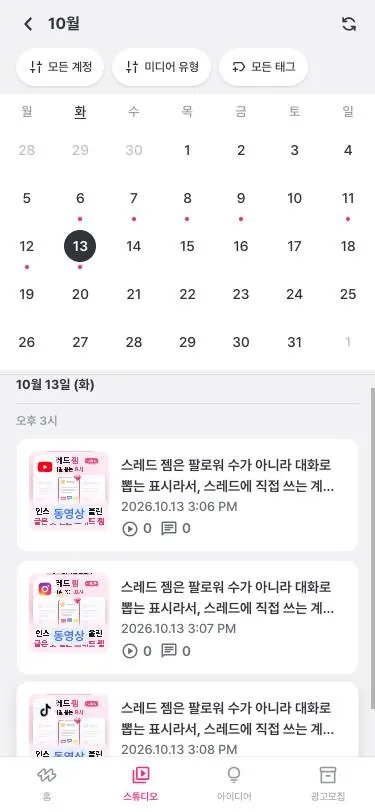
Pick a date and time, and the status changes to “Scheduled.” You can still change the scheduled time or cancel the upload.
- Posted and upcoming, on one calendar
- Content that's already live and content that's scheduled appear together on the same calendar. See channels and counts by date in the monthly grid, and an hourly timeline in the daily view.
- Notifications, so nothing slips
- Get notified when an upload is scheduled, 10 minutes before it goes up, and when it's done.
Start from total views,
down to a single post.
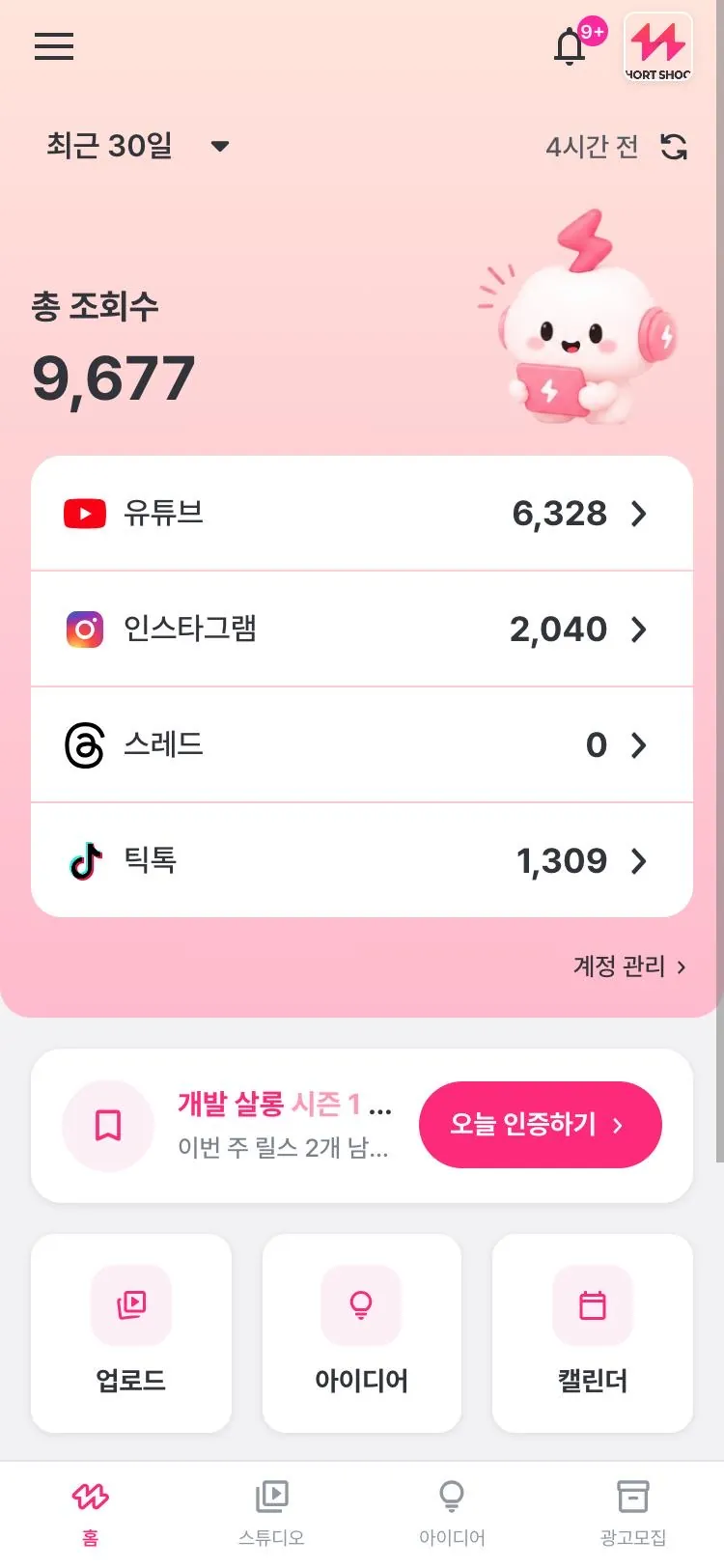
Home adds up views from your connected channels and shows how much they grew compared with the previous period of the same length. You can change the period, and the channel that grew the most gets a “Fastest growth” badge.
- Compare averages by tag
- Tallies video count, average views, average likes, and average comments for each tag on your content. Line up several tags side by side to see which topics landed.
- Same video, contribution by channel
- On the Stats tab of a project that's finished uploading, compare views, likes, and comments by channel.
- Sort and filter the content table
- Sort the Insights table by views, likes, comments, or upload date, and narrow it down by period and account.
- Comment management
- Sort YouTube and X comments into Not processed, Resolved, and Answered, and save frequent replies as templates.
See why it worked,
scene by scene.
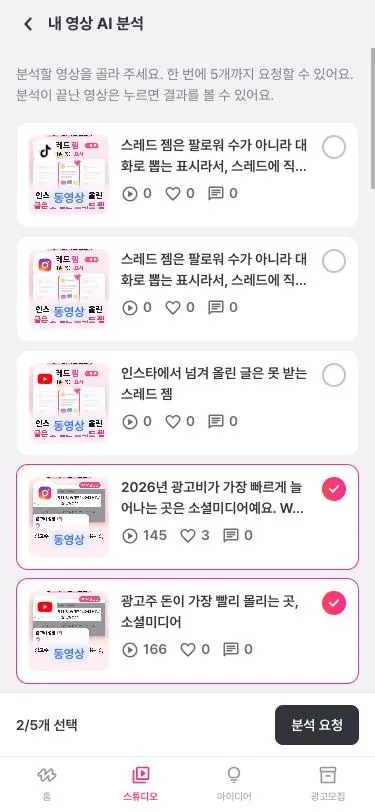
ShortShock's AI doesn't make videos for you. It looks back at the ones you've already made. Analyze content you've posted or references you've saved, and you get a quick summary, viral factors, and improvements with the reasons behind them.
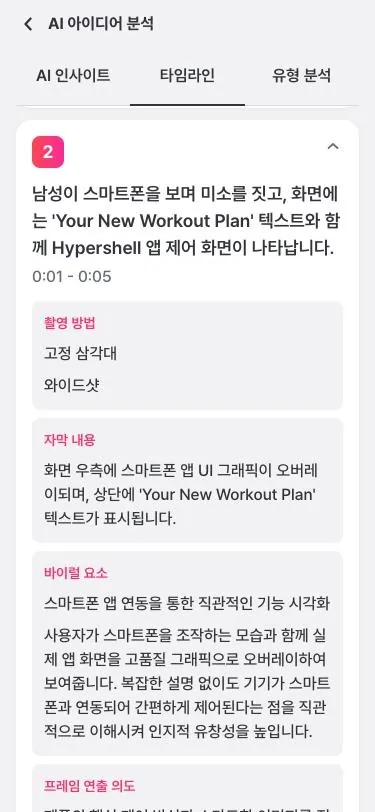
Analysis results come in three parts
- Insights
- Lays out a quick summary of the video, a summary of viral factors, and improvements with their rationale, item by item. Each section has a copy button.
- Timeline
- Breaks down each scene with start and end timecodes, a scene summary, shooting method, subtitle text, and creative intent. Tap an item to jump the player to that moment.
- Type analysis
- Extracts metrics for content purpose and hook elements, pacing and transition speed, BGM mood and share of narration, subtitle frequency, and tone and manner.
AI analysis works on videos and uses AI credits. Some videos may not be supported because of restrictions on the source, and card news and posts aren't analyzed.
Collect references with one link,
share them with one link.
Paste a YouTube, Instagram, or TikTok video link, and the thumbnail, title, original caption, and original view count are saved along with it. You can also save from each app's Share menu.
- Group them into archives
- Organize ideas into named archives, and add tags and notes so you can find them later by keyword.
- Share links that open without signing in
- Turn on sharing for an archive to create a share URL. Recipients can open it without signing in, and you can pause sharing or invalidate the link.
- Analyze your saved references as they are
- Run saved videos through AI analysis just like your own content, see why they worked, and put it toward your next plan.
Paste a link
instagram.com/reel/…
Saved reference title
Original views 124K
#reference #nextweek
Archive · Next week's plan
Share link · No login needed
Alone, the streak breaks.
In a crew, it keeps going.
A crew is a creator group that runs on seasons and weekly missions. The host opens a season and sets a goal like “3 Reels and 2 feed posts a week,” and members verify by picking the content they actually posted that week.
- Seasons and weekly missions
- The host sets the season dates and weekly goals. The season is the reference period for every screen: verification, performance, and rankings.
- Verification streaks
- Your remaining goals for the week and your streak of consecutive weeks show up on the home card.
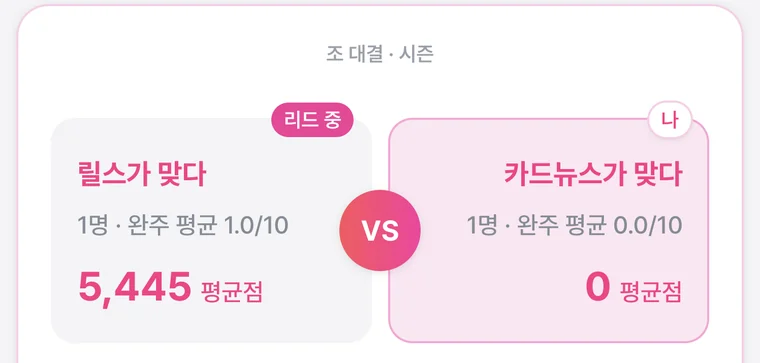
- Rankings and team battles
- Season rankings sort by overall score, views, likes, comments, or posts. When the host splits members into teams, teams face off on their average scores.
- Board and notices
- Posts are sorted by type: Greeting, Free, Reference, and Notice.
Pledges don't count: only content actually posted to a connected account gets verified. You join a crew as a team.
If you run a challenge community — partner with ShortShock Crew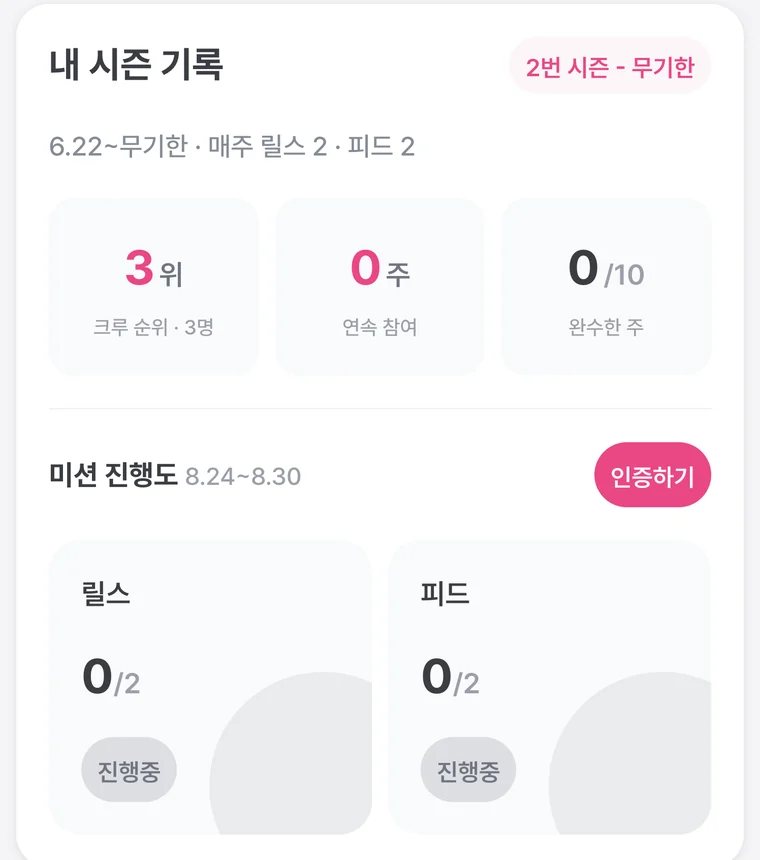
Automate
your uploads, too.
ShortShock's project creation, uploading, scheduling, and performance lookups are open through the Open API. You can call it directly from code, or tell an AI agent like Claude, connected via MCP, what to do. The MCP server is an adapter that wraps the Open API, so permissions, data scope, and rate limits are the same.
MCPAsk in chat
Claude · AI agents
https://mcp.shortshock.net/mcp
Open APICall via REST
Your servers · scripts
https://api.shortshock.net/api/open-api/v1
Publish or schedule to connected channels at once
- YouTube
- Threads
- TikTok
- X
- 1
Create a project
Create a video, article, or card news project to get an address for uploading the file (a presigned URL).
- MCP
- create_
video_ project - API
- POST /
projects/ video
- 2
Upload the file
PUT the video file directly to the address you received. The server won't upload it for you, so send it from your runtime environment.
- MCP
- Direct PUT
- API
- PUT uploadUrl
- 3
Captions · channel settings
Set the title and caption once for all channels, or per channel. For the thumbnail, upload an image or pick a frame from the video.
- MCP
- update_
project - API
- PATCH /
projects/ :id
- 4
Publish · schedule
Publish right away, or pass a time (scheduledAt) to schedule it. Scheduled posts can be canceled.
- MCP
- publish_
project - API
- POST /
projects/ :id/ publish
- 5
Check status · retry
Check the publishing status per channel and republish only the channels that failed.
- MCP
- retry_
project_ item - API
- POST /
project-items/ :id/ retry
How to connect
In Claude
Add it to claude.ai or Claude Desktop as a custom connector.
- 1Open Settings → Connectors → Add custom connector.
- 2Give it any name (e.g., Shortshock) and enter the MCP server address as the URL.
- 3Click Connect to open the ShortShock login and consent screen. Choose the team you want to grant access to, then approve.
https://mcp.shortshock.net/mcpIn Claude Code
Add it with one line in your terminal, then authenticate with /mcp.
- 1Add the server with the command below.
- 2Run /mcp in Claude Code, and the same consent screen opens in your browser.
claude mcp add --transport http shortshock https://mcp.shortshock.net/mcpWith an API key
For server-to-server automation, or tools that don't use OAuth.
- 1Issue a key in ShortShock Workspace settings → API keys. Each key can access only one team's data.
- 2Send the key in the Authorization: Bearer header on every request.
- 3Responses are always HTTP 200 — check the success field in the body to see whether the call worked.
curl -X POST https://api.shortshock.net/api/open-api/v1/projects/video \
  -H "Authorization: Bearer $API_KEY" \
  -H "Content-Type: application/json" \
  -d '{"title": "Summer launch teaser", "contentType": "video/mp4"}'
Once connected, just ask like this
“Create a VIDEO project from this video and schedule it to publish tomorrow at 9 a.m.”
“Change the thumbnail of the video project I just made to the frame at 5 seconds”
“Compare performance by channel over the last 2 weeks with the 2 weeks before and summarize it”
“Summarize the AI analysis of this month's most-viewed content”
Good to know
- When you connect, you pick one team, and the agent can access only that team's data. A key connected through OAuth is cut off immediately when you revoke it in Workspace settings → API keys.
- In chat environments that can't send files, media uploads can't be completed — the file PUT has to run in your runtime environment.
- Request AI analysis in ShortShock, then fetch the completed results through the API or MCP.
Also in ShortShock
Teams and roles
Group teammates and content around a shared topic. Split permissions into Owner, Admin, Editor, and Viewer, and join with an invite code.
Notifications
Get notified about scheduled and completed uploads, finished AI analyses, crew invites, new posts and comments, and season starts and ends.
Open API · MCP
Automate uploads and performance lookups with code or an AI agent like Claude. See “Upload automation” below for how to connect.
Mobile app
Use the iOS and Android apps with the same account as on the web.
Start for free.
We even publish where “unlimited” ends.
Connect your accounts to see the last 30 days of content and performance on Home. Plan limits are on the pricing page, and the actual caps behind what we call “unlimited” are published as-is in the fair use policy.
- 1
Connect accounts
Connect the channels you run on YouTube, Instagram, Threads, TikTok, or X.
- 2
Create a project
Upload a video or card news and choose the channels to post to.
- 3
Check performance
After you upload, views and engagement come together in Home and Insights.
Actual caps in the fair use policy
- 2,000
- Projects per user
- 24
- Video uploads per channel per day
Frequently asked questions
- What is ShortShock?
- It's a social media management tool for creators. Connect your YouTube, Instagram, Threads, TikTok, and X accounts to post or schedule content to all of them at once, see performance on one screen, analyze your videos and references with AI, and keep posting consistently with seasons and missions in a crew.
- Which channels can I connect?
- You can connect YouTube, Instagram, Threads, TikTok, and X accounts. Per-channel options, such as visibility, Duet and Stitch, and who can reply, are also set inside ShortShock.
- Is it free?
- You can start for free. Sign in at app.shortshock.net with a Kakao or Google account to get started right away. Limits for each plan are published on the ShortShock pricing page.
- Can I schedule uploads?
- Yes. Pick a date and time, and the post switches to “Scheduled.” You can also change the scheduled time or cancel. What you've posted and what you've scheduled appear together on one calendar.
- Does the AI make videos for me?
- No. ShortShock's AI looks back at videos you've already made. It analyzes your content or the references you've saved and shows a summary, viral factors, improvements with reasons, a scene-by-scene timeline, and type analysis.
- Can I automate uploads?
- Yes. With the Open API, you can create projects, upload files, and schedule or publish, all in code. Connect the MCP server (mcp.shortshock.net) to an AI agent like Claude, and you can do the same things through conversation. API keys are issued in your ShortShock workspace settings.
- What is a crew?
- A creator group that runs on seasons and weekly missions. Members verify with content they actually posted to their connected accounts, and keep each other posting through rankings and team battles. If you run a challenge community, see the ShortShock Crew partnership proposal page.
Start with today's video.
Bring it all into one place.
From your next upload on, one project is all it takes. Connect your YouTube, Instagram, Threads, TikTok, and X accounts.
Start for freeapp.shortshock.net · Start with your Kakao or Google account